
Independent setup guide. JDownloader and Nitroflare are separate services.
How to Use Nitroflare Premium with JDownloader 2
JDownloader 2 is useful when you have several Nitroflare links. It keeps the queue in one place, shows download progress, and can run several files together. This guide covers setup, our speed test, and common account errors.
Why use JDownloader for Nitroflare?
Chrome works well for one file. JDownloader is easier when a download contains many links or several RAR parts.
Instead of opening every link in a new browser tab, you can add the links to one queue. JDownloader then handles the active tasks and shows how much data remains.
One download window
All Nitroflare files appear in one list. You can pause, reorder, or remove tasks without searching through browser tabs.
Several files at once
A Premium account can run several active tasks. This may use a fast connection better than one browser download.
Traffic information
JDownloader displayed the remaining Nitroflare traffic during our test. This helps prevent starting a queue that is too large.
Easier recovery
Supported tasks can be paused and continued. This is valuable when a large file is interrupted.
How to add Nitroflare Premium
- Open JDownloader 2 and install all available updates. Restart the application after the update finishes.
- Open Settings and select Account Manager.
- Click Add or Add Account.
- Search for nitroflare.com in the host list.
- Enter the email address and password used for your Nitroflare account.
- Wait for JDownloader to check the login. The status should show that the Premium account is valid.
How a working Premium account appears
In our test, the account status changed to “Account is ok: Premium Account.” JDownloader also displayed 23.283 GiB of traffic remaining at that moment.
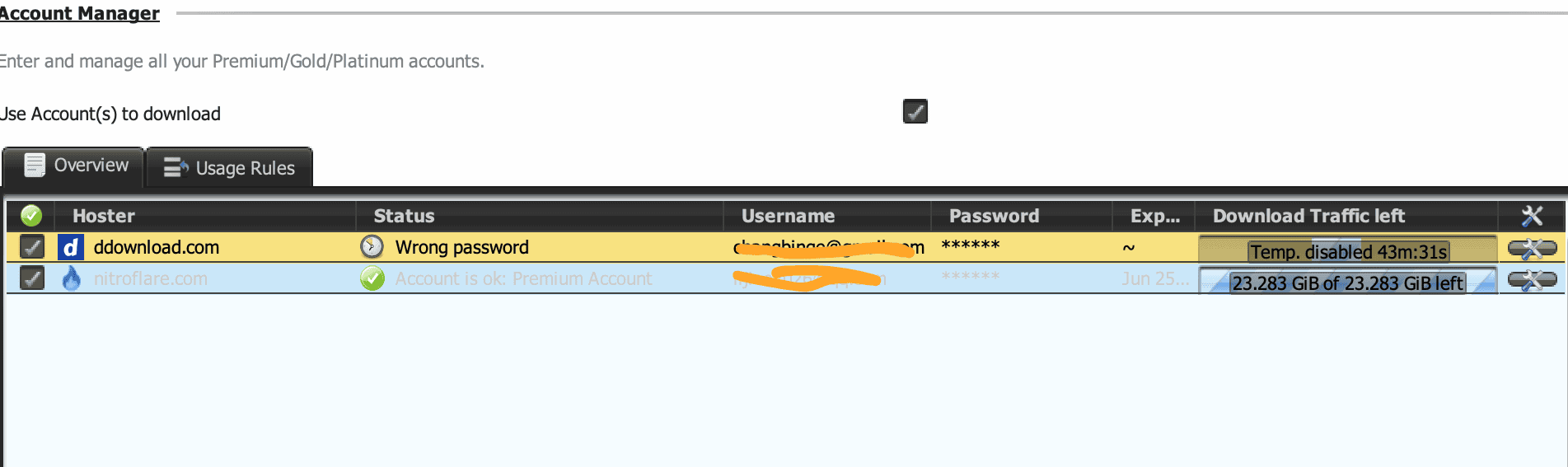
Crop this screenshot before publishing
The image also contains an unrelated DDownload account row. Crop the final WordPress image so the Nitroflare row is the main focus.
Our JDownloader speed test
We ran four Nitroflare Premium tasks at the same time. The visible speeds were 14.69 MiB/s, 6.33 MiB/s, 15.89 MiB/s, and 8.33 MiB/s.
Together, the four tasks reached about 45.2 MiB/s. This was the fastest combined result in our Nitroflare tests.

Individual file speeds were different. That is normal. Files may be stored on different servers, and each connection can perform differently.
The combined result matters more when you are downloading a multi-part archive. The queue can use several connections even when one file is slower.
Recommended download settings
Start with two to four active files
Four tasks worked well on our connection. Start with two if your internet is slower. Increase to three or four when bandwidth remains unused.
Do not use too many connections immediately
Ten or twenty active files may not improve speed. They can make the queue less stable and use the account traffic very quickly.
Keep enough free disk space
Multi-part archives can be much larger than they first appear. Check the total package size and leave extra space for extraction.
Use a stable network
Avoid switching between Wi-Fi, mobile data, and VPN servers while the queue is active. A stable route reduces login and connection errors.
How to add Nitroflare links
Copy the Nitroflare URLs to your clipboard. JDownloader normally checks copied links and places supported files in the LinkGrabber section.
Review the filenames and sizes before starting. Remove duplicate links and files you do not need. Then move the selected items to the download list.
When several archive parts belong together, keep them in the same package. This makes it easier to see whether one part is missing.
Fix “Premium account not recognized”
First, confirm that the account still works in a normal browser. This separates a JDownloader problem from a Nitroflare login problem.
Next, update JDownloader. Host plugins change, and an old version may fail even when the password is correct.
If the account still appears invalid, remove it from Account Manager. Restart JDownloader and add the login again.
Type the email and password manually. Copying from a password manager can sometimes include an extra space.
Fix a “wrong password” message
Test the same login on Nitroflare first. Reset the password when the browser also rejects it.
When the browser works but JDownloader fails, remove the saved account and add it again after updating the application.
Also check whether the email address belongs to the correct account. Users with several file-host accounts sometimes enter the wrong login by mistake.
Fix a temporarily disabled account
JDownloader can temporarily disable an account after repeated login or download errors. The message often includes a retry time.
Do not keep pressing refresh every few seconds. Wait until the temporary period ends, then check the account again.
Restarting the program may help after the waiting period, but it will not fix an expired account or exhausted traffic balance.
What to do when speed is low
Test one file in Chrome first. This shows whether the problem affects Nitroflare generally or only JDownloader.
Next, reduce the number of active files. Several slow tasks can sometimes perform worse than two stable tasks.
Disable a VPN temporarily and test your normal connection. Some VPN routes are longer or more crowded than your direct route.
Try another Nitroflare file when possible. One slow server does not always mean the full service is slow.
What happens when traffic runs out?
A Premium login can remain active even when the available download traffic is low or exhausted. Check the traffic column before starting a large queue.
Compare the remaining balance with the full size of the selected files. Remember that a package may contain several gigabytes across many parts.
JDownloader cannot create extra account traffic. You must wait for the applicable refresh or review the current Nitroflare account options.
JDownloader or Chrome: which is better?
| Use case | Chrome | JDownloader 2 |
|---|---|---|
| One file | Simple and quick | Works, but setup is not essential |
| Many links | Many tabs and manual steps | Better queue management |
| Multi-part archive | Possible | Easier to organize |
| Traffic display | Not shown in the same way | Visible in Account Manager |
| Several active files | Possible in separate downloads | Controlled from one window |
JDownloader FAQ
Does Nitroflare Premium work with JDownloader 2?
It worked in our test. JDownloader recognized the account as Premium and displayed its remaining traffic.
How many downloads should I run?
Start with two to four. Four active tasks reached about 45.2 MiB/s combined on our connection.
Why does JDownloader say Premium is missing?
Update JDownloader, remove the saved Nitroflare account, restart the application, and add the login again.
Will JDownloader remove free account limits?
No. JDownloader manages links, but it cannot remove limits set by Nitroflare. A valid Premium account is still required for Premium access.
Need a Nitroflare Premium account?
Check current plans and traffic terms before adding a new account to JDownloader.